To check your Payment details
Step 1: Log in to the customer portal:
Open the Company customer portal and sign in using your account details.
Step 2: Click Payments
From the menu on the left side of the screen, select Payments.
Step 3: Set your search filters
At the top of the page, use the available filters to narrow down the payment records:
- From Date
- To Date
- Customer
- Invoice
This helps you view payments for a specific period or invoice.

Step 4: Check the payment table columns
The table shows important payment information, including:
- Date – when the transaction was recorded
- Transaction – transaction or reference number
- Details – description of the payment or charge
- Amount – invoice or charge amount
- Payment – amount paid
- Balance – remaining balance after payment
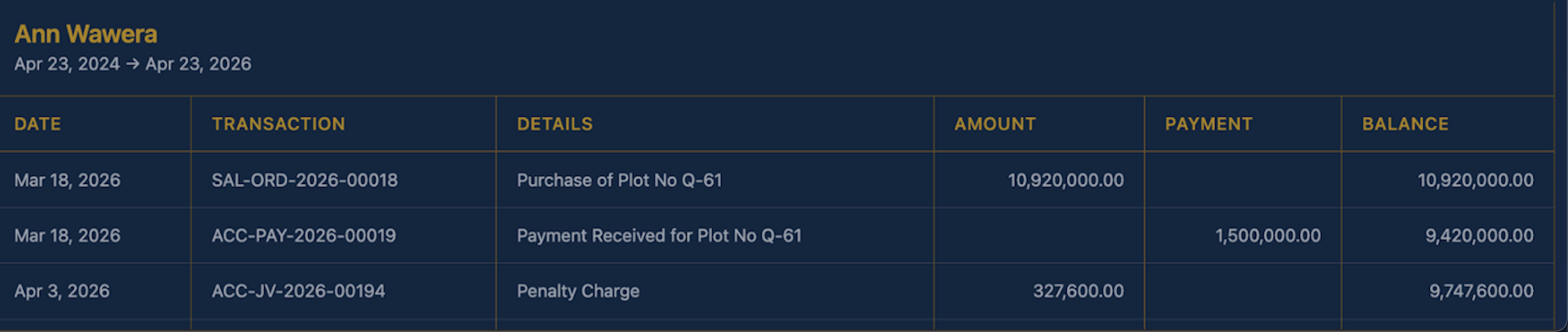
Step 6: Confirm invoice charges
Look for the invoice entry to see the original billed amount for your plot or property.
Step 7: Check payment entries
Review rows marked as payments received to confirm:
- How much you paid
- When the payment was made
- Which transaction reference was used
Step 8: Review any additional charges
Check for any extra entries such as penalties or other charges that may affect your balance.
Step 9: Confirm the remaining balance
Look at the Balance column to see the amount still outstanding after payments and charges have been applied.
