How To Create a Sales Invoice
Step-by-Step Guide to Create a Sales Invoice
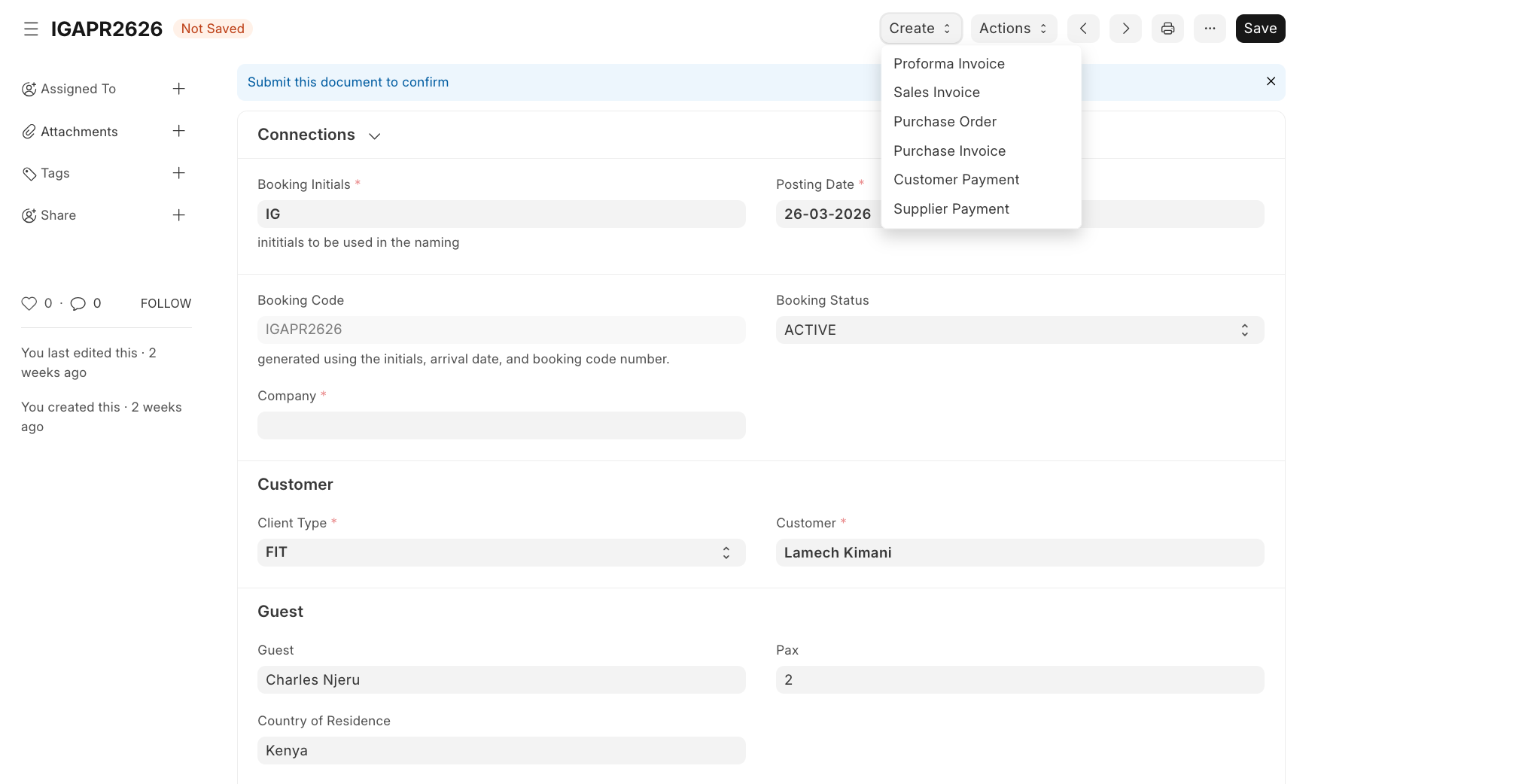
- Navigate to the relevant Booking record.
- Ensure the booking status is Submitted.
- At the top-right corner of the booking page, click Create.
- From the dropdown menu, click Sales Invoice; The system will generate a new invoice linked to the booking.
- Check the following fields under the Details section:
- Customer
- Company
- Posting Date & Time
- Payment Due Date
- Ensure all details are accurate before proceeding.
- Review Items Automatically Pulled. The system will populate items from the booking, including:
- Hotels
- Flights
- Activities
- Insurance
- Visa services
Confirm for each item:
- Quantity
- Rate (USD/KES)
- Total amount

- Adjust or Edit Items (If Needed)
- Click the edit icon beside any item to modify details.
- Ensure pricing and descriptions match the agreed booking.
- Scroll down to confirm:
- Total Quantity
- Grand Total (KES & USD)
- Rounded Total
- Outstanding Amount
- Add Taxes and Charges (If Applicable)
- Click Add Row if taxes apply.
- Enter:
- Tax type
- Account head
- Tax rate
- Final Review
Before submission, double-check:
- Save and Submit
- Click Save to store the invoice.
- Then click Submit to finalise it.
Last updated 4 months ago
Was this helpful?